What is 802.11r roaming and why is is so important to users (and you)?
Wireless roaming is an essential feature for any wireless network, especially for those that are deployed in large, multi-building environments such as universities, hospitals, and campus networks. A simplified explanation is that “802.11 roaming refers to the process by which a wireless client device seamlessly transitions between different access points (APs) or base stations within a wireless network while maintaining an uninterrupted connection. Roaming is crucial for mobile devices, such as smartphones, laptops, or tablets, as they move within the coverage area of a Wi-Fi network.”
The reality is that acheiving this is a hell of a lot harder! BUT we have some standards and nerd knobs that help us to make it a little bit easier.
These include:
- 802.11r - Fast BSS transition (current common standard, and what we will cover in this post)
- 802.11k - neighbour lists (for clients that support it)
- 802.11v - Assisted Roaming (again, for clients that do support it)
If roaming isn’t fast and clean, then users will notice, complain, and it will be your job to fix it up. So lets look at how we can get that right in the first place.
First, if you haven’t done a proper design, then life WILL be harder, and the corners you cut at the start will cost you later! Considerations around AP placement, power levels, minumum/mandatory data rates, channel widths, which result in the overall cell size can all play a big part in getting roaming right from the start. But like we looked at above, there is also more to it than just the design, and design discussions isn’t the aim of this post.
802.11r is the current standard for roaming (replacing the previous OKC method, which some legacy devices might still support today, but that’s another topic), and it improves the transition time for clients to move from one AP to the next, without the need for a full re-authentication. The official name is Fast BSS transition, and you guessed it, it’s covered by the 802.11r amendmant. If we have latency sensitive applications, such as voice on the network, then generally these require a sub 150ms roam time in order to avoid packet loss. For deployments like hospitals, it’s critical to get this right, as otherwise it could be the difference between life and death.
802.11r provides two methods for the fast-roaming handshake: over the air (OTA), and over the Distribution System (DS). With this method, the wireless client performs just one initial authentication against the WLAN infrastructure when a connection is established to the first AP, and performs fast-secure roaming while roaming between APs of the same FT mobility domain.
- Over the Air — The client communicates directly with the target AP for authentication with the FT authentication algorithm.
- Over the DS - The client communicates with the target AP through the current AP, which then exchanges the FT action frames via the controller (in most cases)
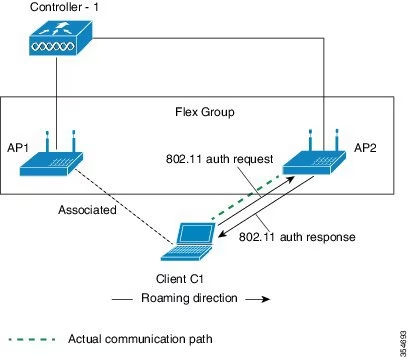
One important thing to remember as well, is that if the WLAN/SSID is enabled for 802.11r, and a “legacy” client tries to connect to it that does not support .11r, then it will fail to connect. An Adaptive mode is usually available to allow for support of clients that do and don’t support the standard, otherwise a seperate non 11r WLAN/SSID may be required.
Using my 9800-CL lab controller to demonstrate, lets have a look at how we can enable FT roaming.
Selecting our WLAN and taking a look under Security -> Layer 2, we will see that by default FT is disabled.
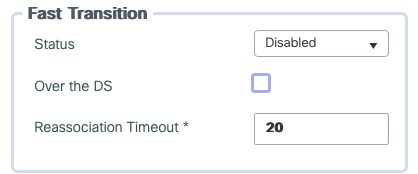 We have the option for selecting Adaptive, or enabled. Whilst you might think that adaptive will give you the best of both worlds, there’s a word of warning, that even with adaptive enabled, some devices that support .11r FT will experience performance issues when adaptive is enabled. Apple devices have been seen to perform poorly for example, and generally like to have FT set to enabled, rather than adaptive. so buyer beware, and test your devices before rolling out to production!
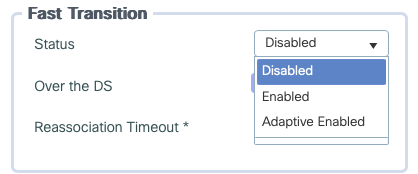 Once we have made our selection, we also have the choice to enable OTA or Over the DS FT. All the tests that I’ve seen have shown no better performance of one over the other, so I’ll usually set it to over the DS.
Be aware that selecting Update and Apply will cause a brief outage on the SSID, so plan accordingly for this, and test thoroughly beforehand!