This post is applicable for both CUCM and Unity Connection, but for simplicity sake we will just cover CUCM here. The process of uploading and converting Unity Connection is the same. This process is also the same no matter which version of CUCM/Unity connection.
Cisco have released the following field notice that covers upcoming changes to connections between CUCM/unityCx and LDAP servers for syncronising and authenticating users.
The short of it is that Microsoft are enforcing that connections should now be over SSL rather than unencrypted transport methods. This was initially going to be enforced from March security patches onwards, but has now been pushed back. Regardless of the time frame though, it is important to make these changes now, rather than be caught in a rush later.
The key changes to the process, apart from changing the port that CUCM talks to the LDAP server on, is that CUCM/UnityCx require that they must trust the LDAP server certificate before they will connect. As most of the time access to the LDAP server is not possible, and involves working through other teams, and a lot of questions, it is simply easier to extract the certificate yourself and apply it to the Tomcat Trust store on the server. Note, that the Tomcat web service does need to be restarted during this process, so there will be interuptions and outages, so be sure to negotiate an outage window before attempting to do this.
There are a couple of ways that we can extract the certificate from the LDAP server, but the easiest method is by using OpenSSL. Another mehtod is via a packet capture from CUCM, but this tends to take longer and is a bit more complex.
If you are on a Mac or linux machine, you will probably already have OpenSSL installed, otherwise if you are on Windows you will need to install it first before attempting this method.
From a shell command navigate to a directory that you want to save the certificate in and enter:
openssl s_client -showcerts -connect <host>:636 >> cert.txt
From there open the cert.txt file in your favourite text editor, and copy the contents of the cert from the
-----BEGIN CERTIFICATE-----
through to the
-----END CERTIFICATE-----
and save the file as ldap_server.cer in a handy location on your local machine.
From there, open up your web browser and log in to CUCM’s OS admin page.
Naviagte to Security –> Certificate Management and select Upload Certificate. Select Tomcat-Trust from the dropdown list to ensure that you are loading the certificate in to the correct store.
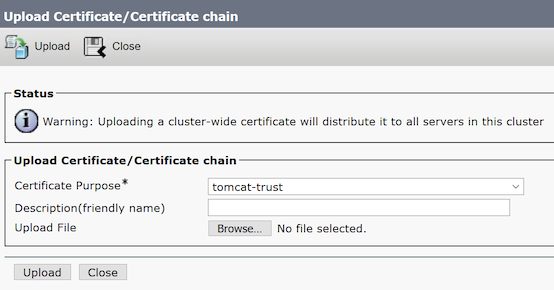
Browse your PC and select the cer file that you had previously saved, and select Upload. If successful you will receive a message about needing to restart Cisco Tomcat. You can either do this now, or at a later stage, but you cannot proceed with the next steps until you have completed the restart.
To restart the Tomcat service log in to the admin CLI via SSH and enter (remembering that this will cause an outage):
Utils service restart Cisco Tomcat
You will now have to wait 5-10 minutes for everything to be back online before you continue on with the next step.
Once the web services are back up, log back in to CUCM Administration (not OS admin) and navigate to System –> LDAP –> LDAP Authentication.

Update the port that CUCM is using to be 636 and select TLS as the method. Press save, and you should receive a message that the update has been successful. If you receive any errors about CUCM not trusting the LDAP servers certificate, then you will need to go back and review the cert that you have extracted to ensure that it matches that of the LDAP server host, and re-upload it if necessary.
All going well, you will then need to make the same changes for LDAP Syncronisation, so go ahead and browse to System –> LDAP –> LDAP Directory, and update the port and TLS method from there. Again, save and ensure that this completed successfully. If all looks good, initiate a sync and ensure that the users are still active in the End Users page.
You have now updated CUCM to use LDAPS, and there is one less stress for later on!.